How to Bring Back Launchpad on macOS 26 Tahoe
When Apple released macOS 26 Tahoe, longtime Mac users were shocked to discover that the beloved Launchpad had been completely replaced with a new feature called Apps. This change left many users frustrated, as the new Apps feature offers significantly limited customization options compared to its predecessor.
If you’re one of the many users missing the original Launchpad functionality, you’re not alone. The good news: while you cannot restore the original Launchpad in macOS 26 Tahoe through a system setting, a focused Launchpad replacement can bring back the visual app grid, folders, and drag-and-drop organization.
What Changed in macOS 26 Tahoe?
Apple’s decision to replace Launchpad with the Apps feature removed several key functionalities that power users relied on:
- No custom app arrangement - You can no longer drag and drop apps to organize them
- Limited folder support - The robust folder system is gone
- Reduced customization - Visual customization options have been stripped away
- Different interaction model - The familiar grid-based interface has been replaced
The Best Third-Party Alternatives
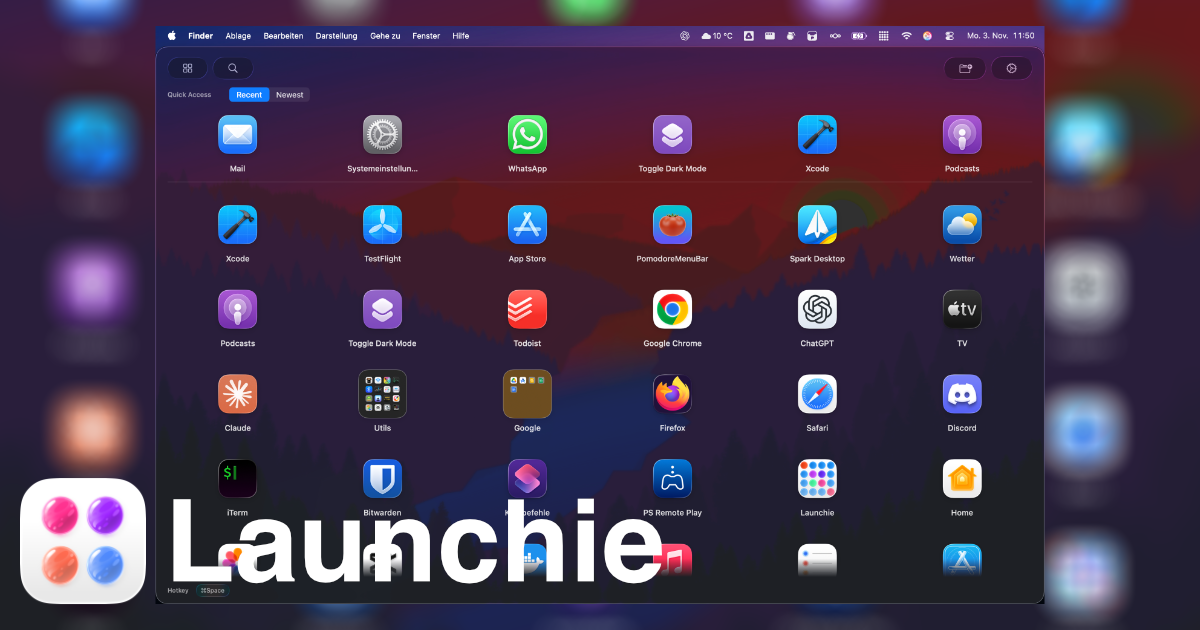
Launchie: A macOS 26 Tahoe Launchpad Replacement
Launchie stands out as the most comprehensive alternative to the classic Launchpad. It closely mimics the original experience while adding modern enhancements:
Key Features:
- Full drag & drop functionality - Organize your apps exactly how you want them
- Custom folders - Group related apps together with ease
- Lightning-fast access - Press
Cmd + K to open instantly from anywhere
- Powerful search - Find any app with built-in search functionality
- Modern design - Built specifically for Apple Silicon Macs with native performance
- Multiple visual styles - Choose between Sheet and Glass appearances
- Full screen mode - Immerse yourself completely in app organization
While Launchie isn’t full-screen by default and may have occasional minor bugs (like any third-party app), it provides the most faithful recreation of the original Launchpad experience.
🎯 AppHub: Another Solid Option
AppHub offers another approach to restoring Launchpad-like functionality:
- Smooth animations reminiscent of the original
- Advanced grid customization options
- Keyboard controls for power users
- Dark mode support
- Similar design philosophy to the classic Launchpad
Alternative Methods (If Third-Party Apps Aren’t for You)
If you prefer not to use third-party applications, consider these built-in alternatives:
📂 Applications Folder in Dock
- Drag your Applications folder to the Dock
- Right-click the new Applications folder icon
- Select “View Content As” → “Grid”
- Enjoy a grid-style view of your apps similar to Launchpad
This method provides quick access to your apps in a grid format, though without the full customization of the original Launchpad.
🔍 Enhanced Spotlight
The revamped Spotlight in macOS Tahoe integrates app launching capabilities:
- Press
Command + Space to open Spotlight
- Press
Command + 1 to view apps in grid format
- Browse or search for the app you need
While functional, this approach lacks the visual organization and customization that made Launchpad special.
Why We Recommend Launchie
As the creators of Launchie, we obviously have a bias, but here’s why we believe it’s the best solution for bringing back Launchpad functionality:
✅ Complete Feature Parity
Launchie includes all the features you loved about the original Launchpad, plus modern enhancements.
Built specifically for Apple Silicon Macs, Launchie feels fast and responsive.
✅ Active Development
We continuously update Launchie with new features and bug fixes based on user feedback.
✅ Easy Installation
Simply download, extract, and move to Applications - no complex setup required.
Getting Started with Launchie
Ready to restore your Launchpad-style workflow? Here’s how to get started:
- Download Launchie from the Mac App Store
- Open Launchie and grant the requested permissions
- Choose your preferred visual style and layout
- Create folders and arrange apps the way you remember
- Set a shortcut so your Launchpad replacement opens instantly
If you prefer Homebrew or a manual install, see the Launchie installation guide.
Frequently Asked Questions
Can I get the old Launchpad back on macOS 26 Tahoe?
Not through an official macOS setting. Apple changed the app launching experience, so the practical option is to use a third-party Launchpad replacement such as Launchie.
What replaced Launchpad in macOS Tahoe?
Apple moved users toward the new Apps interface and Spotlight-style app discovery. It can launch apps, but it does not fully replace Launchpad’s visual grid, folders, and custom organization.
Is Launchie better than using the Applications folder in the Dock?
The Applications folder can show a simple grid, but it does not recreate the full Launchpad workflow. Launchie is built for visual browsing, folder organization, search, and a dedicated launcher experience.
The Verdict
While Apple’s decision to remove Launchpad in macOS 26 Tahoe was disappointing for many users, the third-party ecosystem has stepped up to fill the gap. You cannot restore the original Launchpad, but applications like Launchie provide an even better experience with modern enhancements and active development.
Whether you choose Launchie, AppHub, or one of the built-in alternatives, you don’t have to give up on organized app launching. The classic Launchpad experience lives on through these excellent alternatives.
Related Articles
For questions about privacy and data collection, check our Privacy Policy.
Missing other features from the classic macOS experience? Let me know what you’d like to see restored, and I might just build it into Launchie! 🚀
 Launchie